

Accessible online meetings rely partly on the meeting platform tools and partly on effective meeting practices. When you plan ahead and practice good habits to make meetings more accessible, attendees can bring their best contributions.
Online meeting accessibility resources
Accessibility tools
Microsoft Teams and other meeting platforms include a variety of accessibility tools. Be aware of which tools are available and how to enable them during a meeting.
Examples include:
- Captions - The platform tracks what is spoken and displays it as text during the meeting.
- Transcripts - The platform tracks what is spoken and compiles it into a readable document that attendees can review afterward.
- Recordings - The platform records the meeting and makes it available for attendees to review afterward. These recordings should also include captions. Before recording any meeting, please review the university’s guidelines for meeting recordings to ensure this option is appropriate.
- Image Descriptions - The platform has tools for adding text descriptions when you add images or gifs into the text chat.
By following best accessibility practices, you create a setting where people can more easily understand and participate in the conversation.
-
Share agendas and materials ahead of time
When attendees have time to prepare, they can become familiar with the content and reach out with any questions or access needs. Digital documents that you share also need to be accessible.
-
Introduce each speaker change
Each time the speaker changes, mention who is speaking. This practice supports with tracking the conversation, especially for people who are blind or low vision, people who are relying on captions, and people who have joined via phone and are using audio only.
-
Speak one at a time
Avoid speaking over each other. Especially in large meetings, conversation tools like “Raise Hand” can help control the flow of conversation.
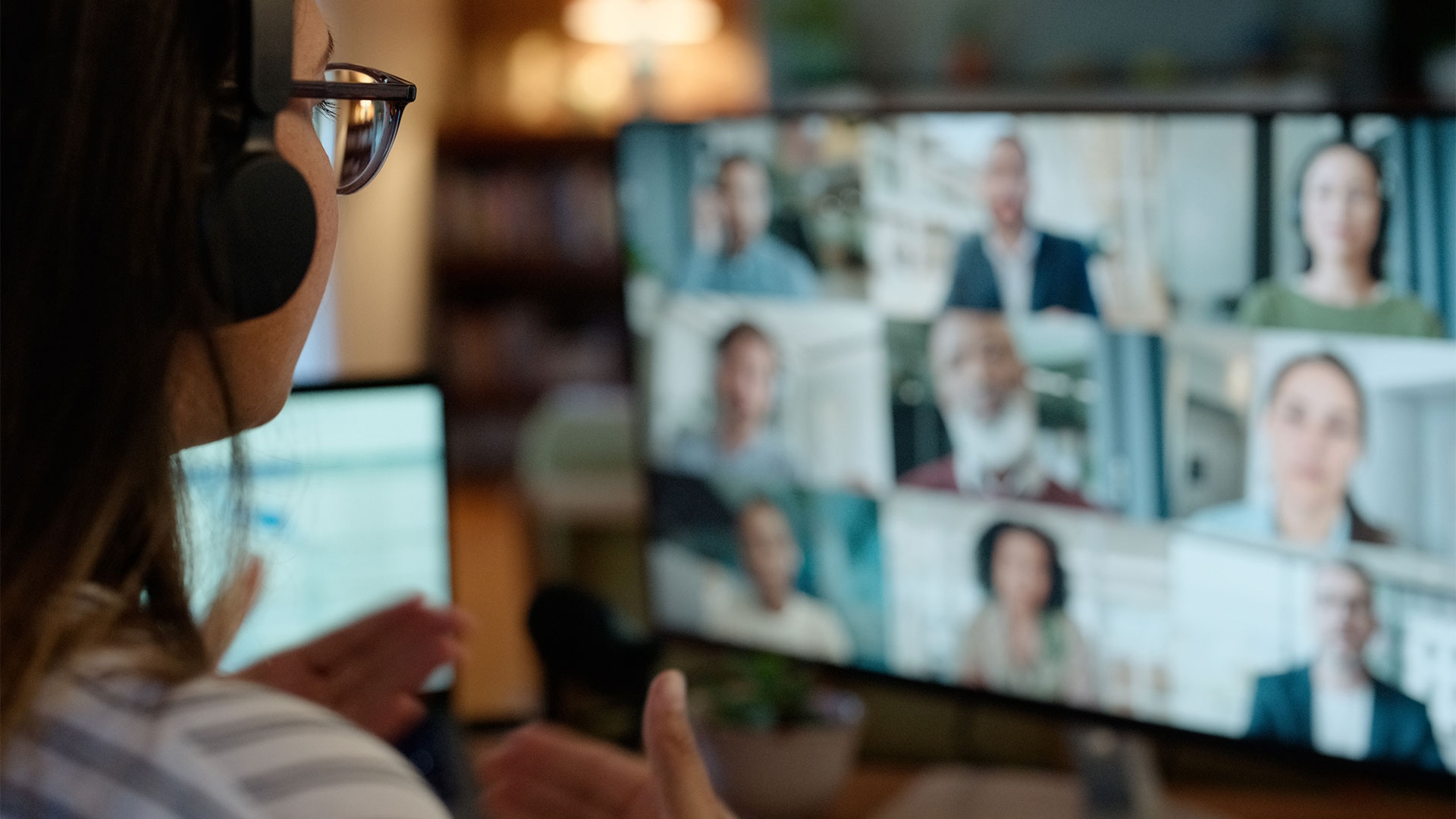
User story: Captions
Diane is hard of hearing. In person, she uses lip reading to fill gaps in the conversation, but she finds it more difficult to accurately read lips over video. She’s invited to an online meeting where the host has not enabled captions, so she misses parts of the conversation. Diane hesitates to offer her thoughts or questions because she’s not sure she has fully understood the discussion.
Remove the barrier: Captions are enabled. Diane uses the captions to follow the conversation, and she is more comfortable sharing her ideas.