

Media that you create or share–such as videos, audio recordings, and multimedia presentations–have accessibility requirements.
With planning, video and audio can be equally available and engaging for people with and without sensory disabilities.
Video and audio accessibility resources
-
Limit visual flashes
Avoid flashing images or colors, which can cause seizures and other dangerous or uncomfortable reactions.
If you must include flashes, ensure they are no faster than three flashes per second.
-
Measure color contrast
For meaningful visual elements such as text or graphics, use colors that have high contrast against their background.
If you are not sure, use tools to measure the color contrast by checking the foreground color against the background color. Many design and video software programs include color contrast checkers, or you can use browser extensions or downloadable tools.
Color contrast minimums:
- Text: 4.5:1
- Icons and graphics: 3:1
Use tools, such as the WebAIM contrast checker, to evaluate color contrast ratios.
-
Background audio
When audio includes speech, remove or reduce background audio so the speech is easier to hear and understand.
Use audio software to measure and compare the volume between speech and any non-speech sound, such as background music or sound effects. The background audio volume should be at least 20 decibels (dB) lower than the speech audio.
To make media available to different senses, provide alternative versions of the content. The type of alternative you create will depend on the format of media.
-
Video only
For example, a silent movie or GIF (Graphic Interchange Format).
Video text alternative
Provide a text description that tells the events in the video. This description must include the people, actions, settings, and objects needed to understand the video. These visual alternatives are commonly used by people who are blind, deaf/blind, or who have low vision or a cognitive disability.
Decide which visual details to include based on the purpose of the video. A silent instructional video on how to perform a skill will include different types of details than a silent storytelling video.
Effective text alternatives for video resemble a written story of what is happening on screen.
-
Audio only
For example, a podcast episode.
Transcripts
Transcripts are text that identify each speaker and accurately convey all spoken dialogue and meaningful sound effects. Time stamps can also be helpful. These audio alternatives are commonly used by people who are deaf, hard of hearing, deafblind, or who have a cognitive disability.
Effective transcripts resemble the script of a radio play and match the audio exactly.
-
Video and audio
For example, a social media video that includes both sound and moving images.
Captions
Captions are text that appear in sync with the video and accurately reflect all spoken dialogue and meaningful sounds. These audio alternatives are commonly used by people who are deaf, hard of hearing, or who have an audio processing disability.
Open captions are embedded directly in the video content and are always visible. Closed captions are displayed by the media player and can usually be turned on or off.
Many video platforms now offer automatic captioning. Automated captions are a useful starting point, but a human must review and correct them for accuracy.
Effective captions match the audio exactly, both in content and timing.
Audio descriptions
Audio descriptions are additional audio tracks that describe any visual information that is not already conveyed by the existing dialogue and sound. These visual alternatives are commonly used by people who are blind or have low vision.
Audio descriptions can either be included directly in the original video, or you can include a link to an audio-described video alongside the original.
Effective audio descriptions sound like stage directions in a script.
If you plan ahead and include all the important visual information in existing narration or dialogue, then a separate audio description may not be necessary. For example, in a demonstration video where the instructor verbally describes each step as they perform it, the video likely does not need additional audio description.
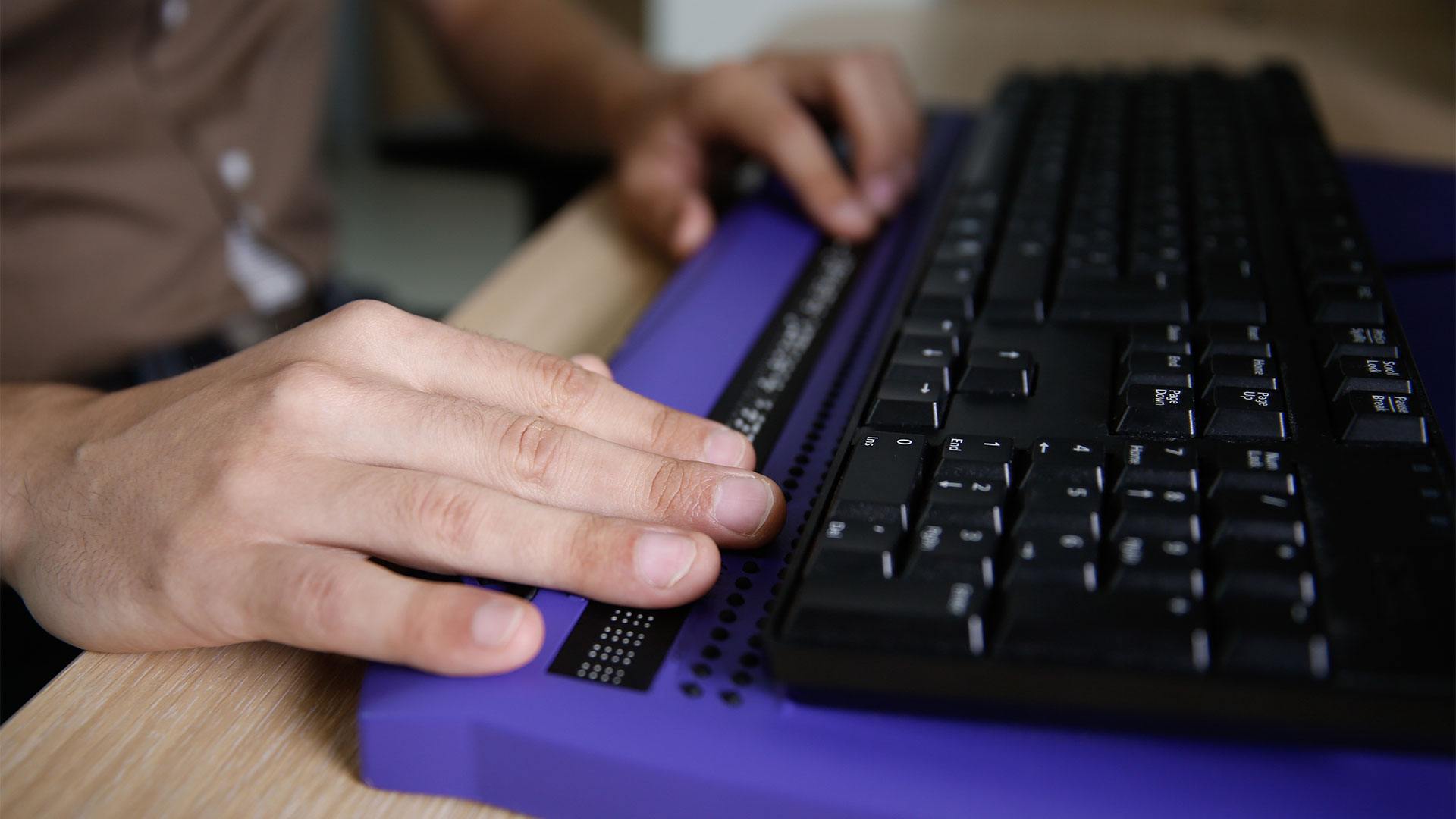
User story: Transcripts
Videsh discovers a podcast episode about health and aging, a topic he is researching. He searches the podcast site, but he can’t find any transcripts. Videsh is deaf/blind, and he interacts online by converting digital text into touch using a refreshable Braille display. Since there is no text version of the podcast, there is nothing for his technology to convert.
Remove the barrier: Provide a clearly labeled text transcript alongside each episode. Videsh easily finds the full episode transcript and reads it using his assistive technology.